5.4.2. Download PCAP
Download PCAP allows you to retrieve packet capture data for a specific endpoint and time range. Use the downloaded file for further analysis in third-party tools such as Wireshark.
Download PCAP is available on the Detail and Conversation dashboards.
Packet capture using the Download PCAP panel
Use the cPacket Download PCAP panel on the Detail and Conversation dashboards to download packet capture (PCAP) files.
Click the Download PCAP tab in the metrics table. The cPacket Download PCAP panel allows you to select the filter type (Fast or BPF), define IP address and port filters, and choose the cStors to use for the download.
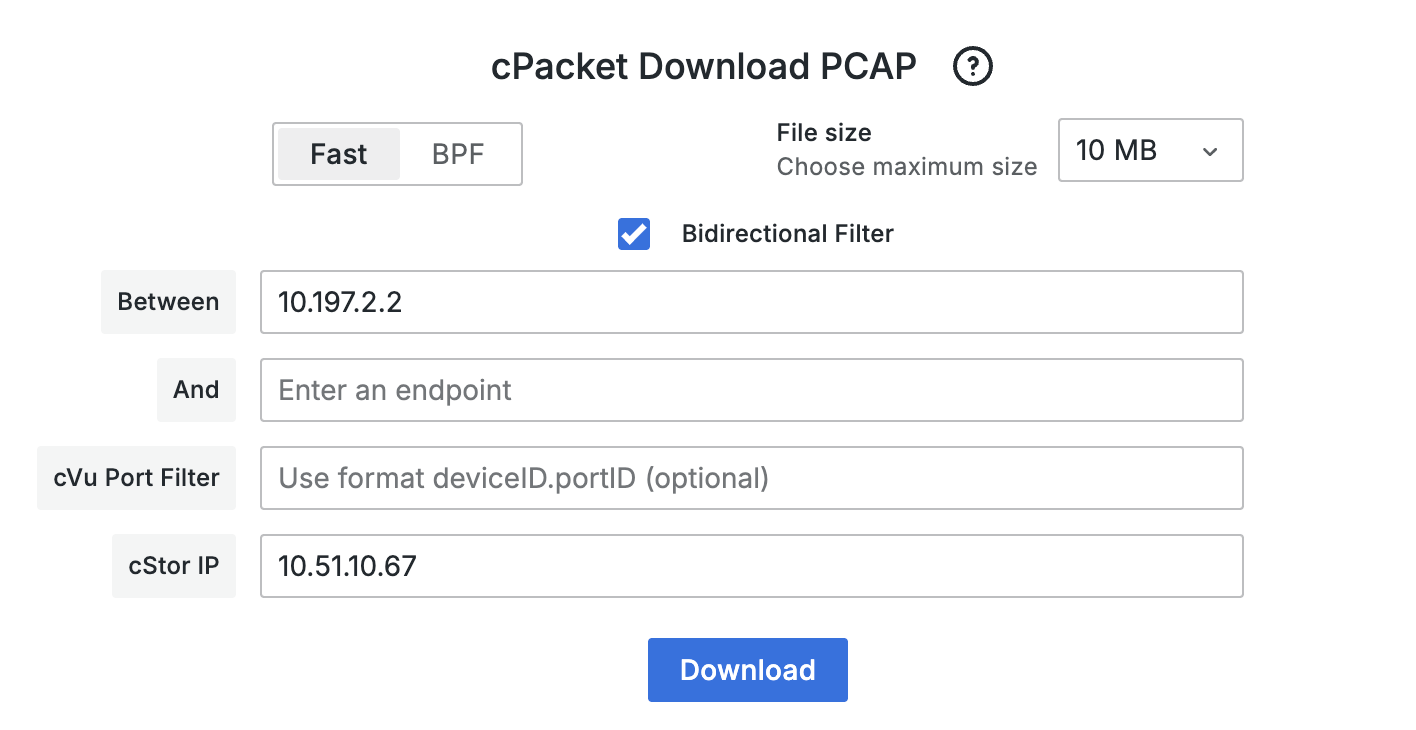 |
Apply filtering criteria to target specific traffic. You can use directional or bidirectional fast filters, or define a BPF filter for more advanced filtering. Fast filters match packets based on specific IP addresses and ports.
The cPacket Download PCAP panel includes the following parameters:
Parameter | Function |
|---|---|
Fast filter | Search for packets that match specific source and destination IP addresses and cVu ports. |
BPF filter | Define filters using Berkeley Packet Filter (BPF) syntax. |
File size | Specify the maximum file size to download. If the PCAP exceeds this size, the file is truncated. Select All to download all available data. |
IP range | Enter a valid IPv4 address, with or without a specified port. For example:
|
cVu Port Filter | Enter the cVu port as a period-separated value consisting of the device ID and port number. For example, 138.2. |
cStor IP | Enter a comma-separated list of cStor IP addresses. Each must be a valid IPv4 address, with or without a specified port. For example:
|
If you select BPF as the filter type, refer to the BPF syntax guide for general syntax examples.
To start the download, click Download in the cPacket Download PCAP panel. To cancel an active download, use your browser’s cancel function.
Download PCAP using the table
You can download packet capture (PCAP) files from the table on the Conversation dashboards. The download uses the current time range for the dashboard.
To download a PCAP file, select download  in the PCAP column of the table.
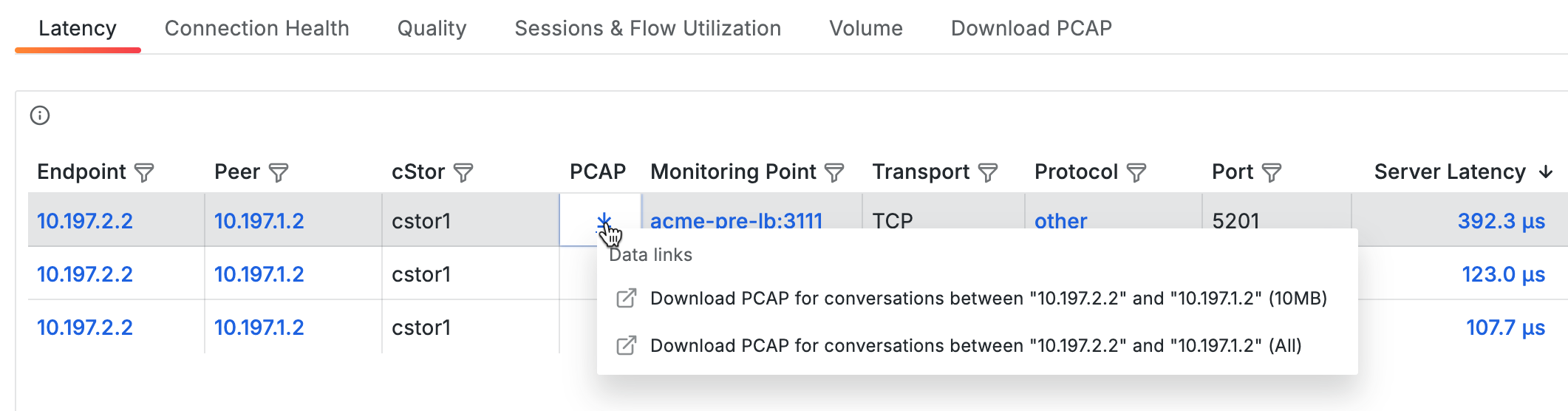
You can choose to download a 10MB file or select All to download all available data for that time range.