2.2.3. Network monitors overview
Network monitors map application sessions to network elements, such as IPs, VLANs, and VXLANs, enabling better application mapping to the network. This lets you focus on services and traffic behavior without requiring detailed knowledge of network structure, connectivity, and routing policies.
Network monitors collect analytics data from cStor devices for visualization on Grafana dashboards. Ensure analytics is enabled on each contributing cStor device. If analytics is disabled on a cStor, associated network monitors do not collect data. For more information, see Analytics in the cStor S User Guide.
The Network Health monitor provides the analytics used by the Observability dashboards. Other network monitor types support specialized analytics and dashboard views for specific protocols or use cases.
Supported network monitors
- Network Health
The Network Health monitor collects analytics for TCP sessions and flows. It provides bidirectional metrics for TCP sessions and single-direction analytics from source to destination. This monitor collects aggregated 4-Tuple TCP metrics and flow data for traffic within a configured subnet CIDR from a configured cStor device.
The TCP 4-tuple includes the server IP, server port, client IP, and client port. TCP data consists of per-conversation and active session metrics, including:
Per-side counters for high-level TCP information such as packets, bytes, and fragments.
Maximum packet size.
Per-side signaling for connection setup, tear down, and completed sessions based on SYN, SYNACK, RST, and FIN.
Per-side latency metrics such as RTT and response time.
Per-side performance and error metrics, including window scale size, minimum window size, zero windows, sequence errors, retransmissions, duplicates, and gaps.
The flow 4-tuple includes the source IP, destination IP, IP protocol, and known application port. Flow data consists of per-flow metrics, including:
Counters for the number of packets, bytes, and IP fragments seen in a flow.
Maximum packet size in a flow.
- DHCP Analytics
The DHCP Analytics monitor collects metrics for message types, transaction IDs, client metadata (IP address, hardware address), server and gateway IP addresses, SMTP, and agent information within a configured subnet CIDR from a configured cStor device.
- DNS Analytics
The DNS Analytics monitor collects metrics for requests, query types, query domains, the requester and responder IP addresses, and transaction response times within a configured subnet CIDR from a configured cStor device.
- HTTPS Analytics
The HTTPS Analytics monitor collects HTTPS protocol analytics within a configured subnet CIDR from a configured cStor device.
This HTTPS data includes the handshake version, cipher suite, client hello, server hello, handshakes accepted, handshake response time, fatal alerts, SNI, and TLS certificates.
TLS Certificates data includes the serial number, issuer, subject, version, validity, and session count.
- ICMP Analytics
The ICMP Analytics monitor collects metrics for transactions, response times, type and code counts with descriptions, and original packet metadata (source and destination IPs, ports, and packet IDs) within a configured subnet CIDR from a configured cStor device.
- LDAP Analytics
The LDAP Analytics monitor collects LDAP protocol analytics within a configured subnet CIDR from a configured cStor device. It captures both setup and per-operation metrics. Setup metrics include response times, security mechanisms such as bind and startTLS, user identifiers, and any errors encountered. Per-operation metrics cover transactions, response times, and error codes, organized by operation types including search, modify, add, delete, modify DN, compare, and extensions.
- Market Data Analytics
The Market Data Analytics monitors collect 7-Tuple Market Data analytics for configured cMDF multicast groups within a configured subnet CIDR from a configured cStor device.
This cMDF data consists of per-feed metrics, including:
The feed's market data protocol.
Counters for the number of packets, bytes, messages, heartbeats, and resets seen in that feed.
cMDF sequence errors, gaps, reorders, and duplicates.
cMDF latency metrics such as transit time and max packet delay variation (PDV).
- Multicast Analytics
The Multicast Analytics monitors collects IGMP and PIM analytics within a configured subnet CIDR from a configured cStor device. This multicast data consists of per-group metadata, including:
Group membership by client IP.
Multicast sources and routers.
Known multicast applications.
PIM message activity.
IGMP membership query, report, and leave message activity.
- Video Analytics
cClear's Video Analytics monitor collects video analytics for configured RTP flows within a configured subnet CIDR from a configured cStor device.
This Video Analytics data consists of per-session health metrics, including:
Counters for the number of packets, bytes, and IP fragments seen in that flow.
RTP sequence errors and lost packets.
RTP latency metrics such as jitter and skew.
- VPN Analytics
cClear's VPN Analytics monitors collects VPN analytics for ESP flows within a configured subnet CIDR from a configured cStor device.
This VPN data consists of per-session (identified via ESP SPI) health metrics, including:
Counters for the number of packets, bytes, and IP fragments seen in that flow.
ESP sequence errors and lost packets.
Create and enable network monitors
Go to Configure > Network Monitors and click Add New.
Enter a monitor name and optional description.
Select the monitor type and enter a CIDR in IP prefix format.
To collect traffic from all source and destination IP addresses, select Collect all data and set the CIDR to 0.0.0.0/0.
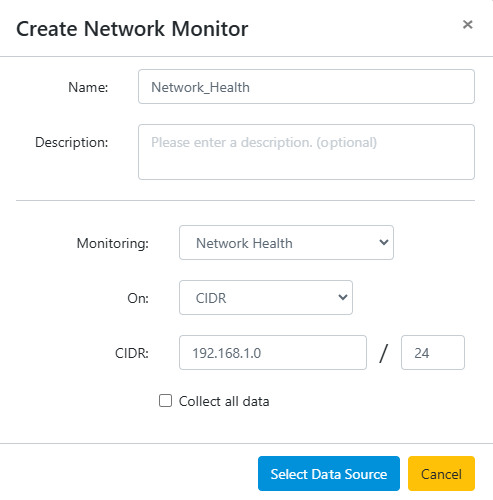
Click Select Data Source.
Select one or more cStor devices as the data source for this network monitor. Network monitors collect analytics directly from the selected cStors.
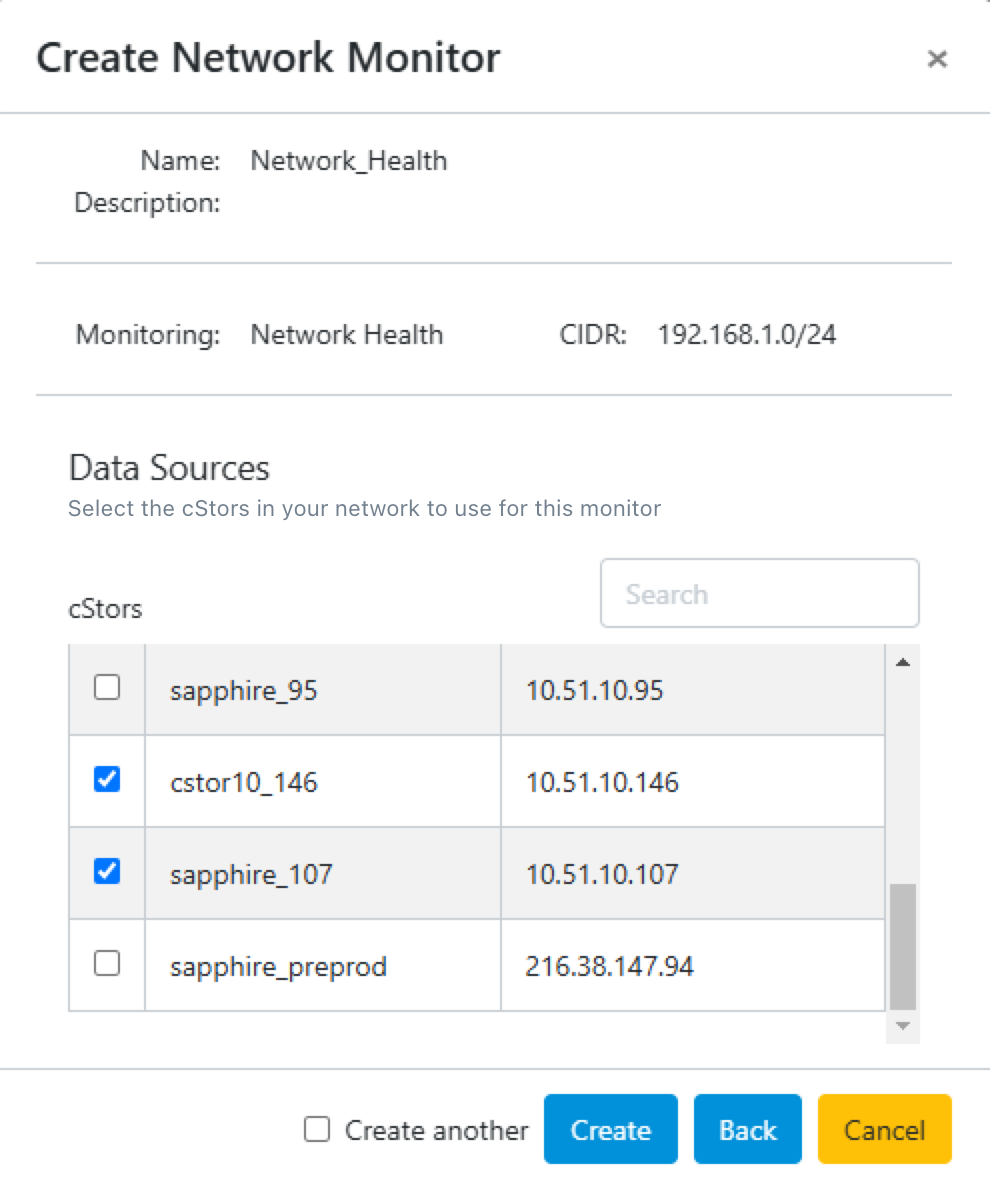
Click Create to save the network monitor. To create another network monitor, select Create another before clicking Create.
After saving the monitor, the Network Monitors overview page appears. Turn on the Active toggle to enable the monitor. From here, you can enable, disable, modify, or delete network monitors.
Analytics are collected only when a network monitor is active.
